
This article will walk you through uploading your list of contacts into the customer table so you can use the email marketing tool within the PROSALE system.
First, navigate to the Customers menu option.
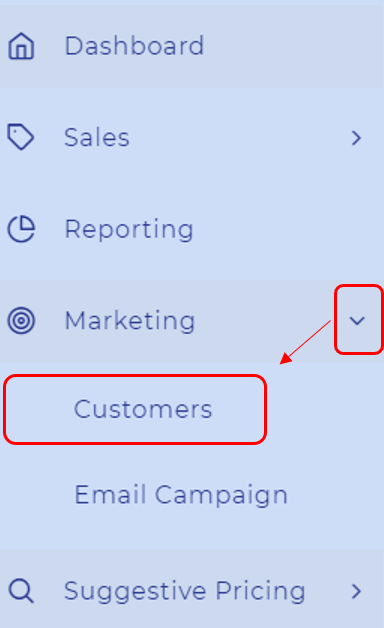
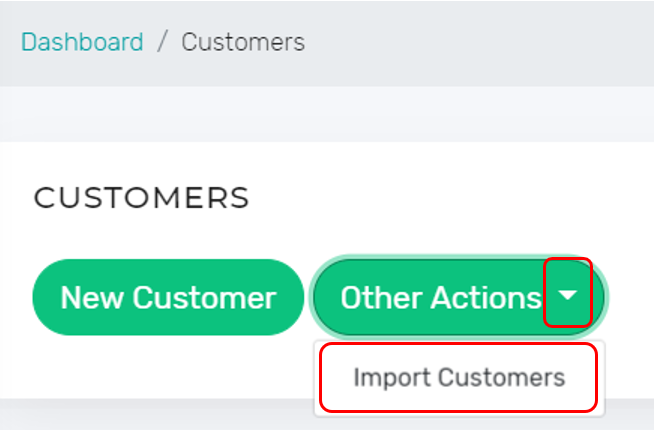
From the Customers screen, select Other Actions and then Import Customers.
You will be presented with a screen similar to the one shown below with the following options. Each option is further described below the image.
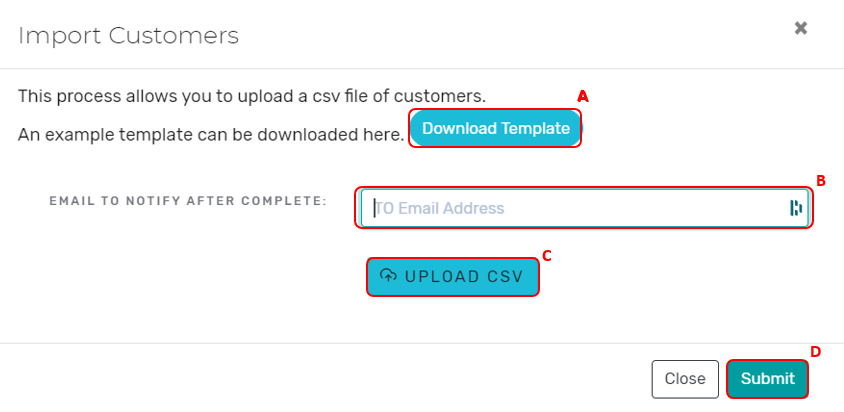
A: Download Template - You can select this button to download an example template of the required format for uploading your contacts. The file must match this format in order to upload it correctly.
B: EMAIL TO NOTIFY AFTER COMPLETE - Enter the email you would like to notify when the upload is complete. It is possible that it may take a few minutes to upload your list of contacts if the list is large.
C: UPLOAD CSV - Once you have confirmed that your customer list is in the proper format you can click this option to select your file you wish to upload.
D: Submit - Once you have successfully selected your file you will select submit to import your customer list.
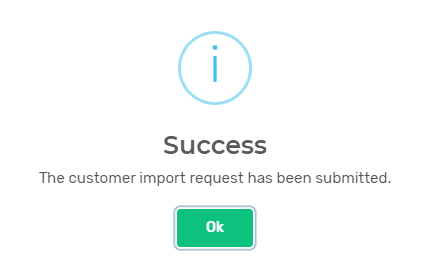
If you followed the steps and properly formated your customer list, you will receive an alert on the screen letting you know the process was successful. You will later receive an email notification at the address entered when the file has been loaded to your PROSALE site.
Comments
0 comments
Please sign in to leave a comment.