
When you receive your iSMP4 credit card processing devices, please follow the steps outlined below to configure them for WiFi.
To begin, ensure that the iSMP4 device is fully charged before you attempt to configure and use it for the first time. Failure to fully charge the device prior to its first use can result in the loss of data stored in the device memory. The initial charging time is approximately 4 hours.
- Press and hold the button on the top right side until the device powers on.
- The device will settle on the main screen.
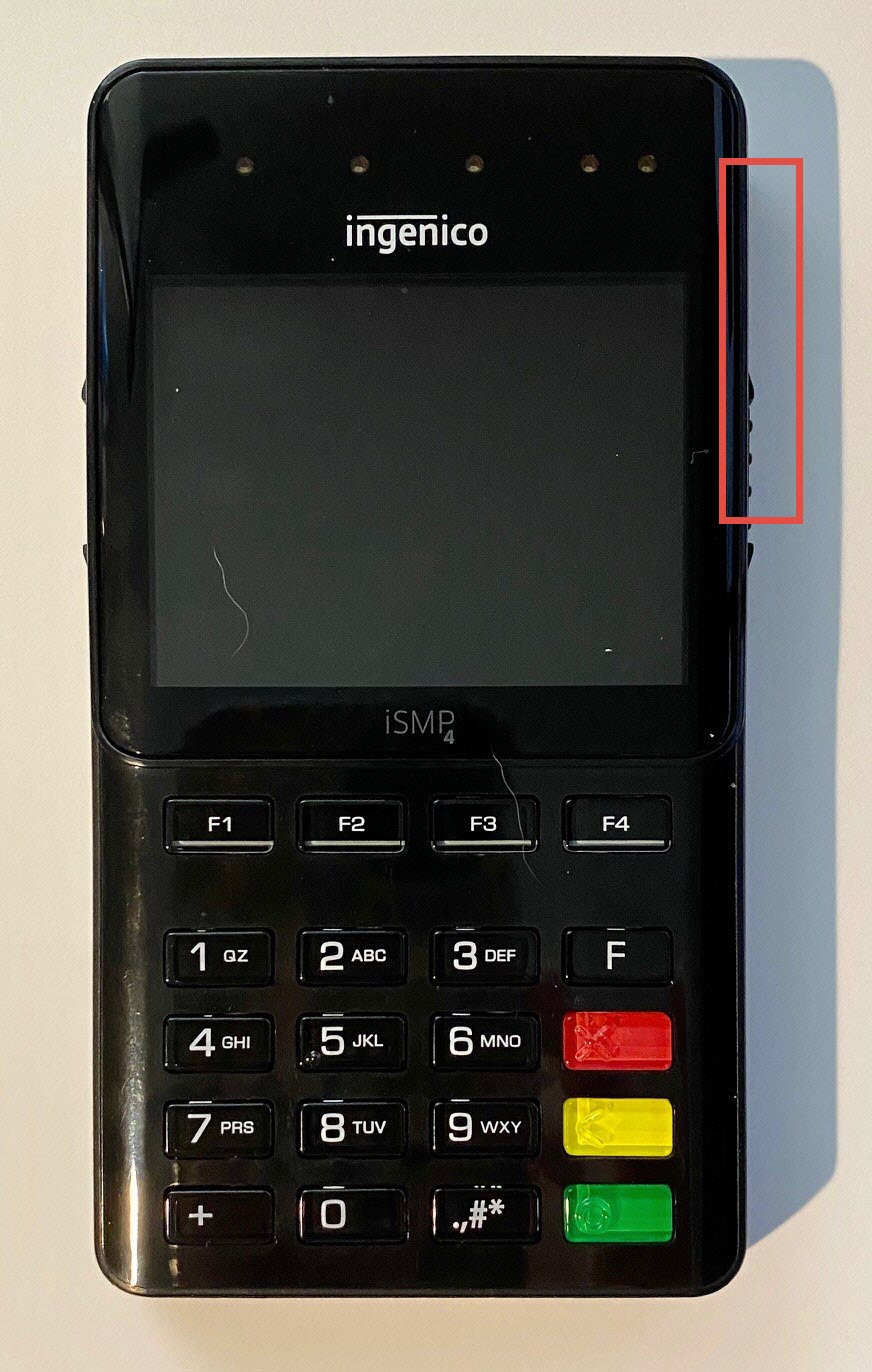
- The device will settle on the main screen.
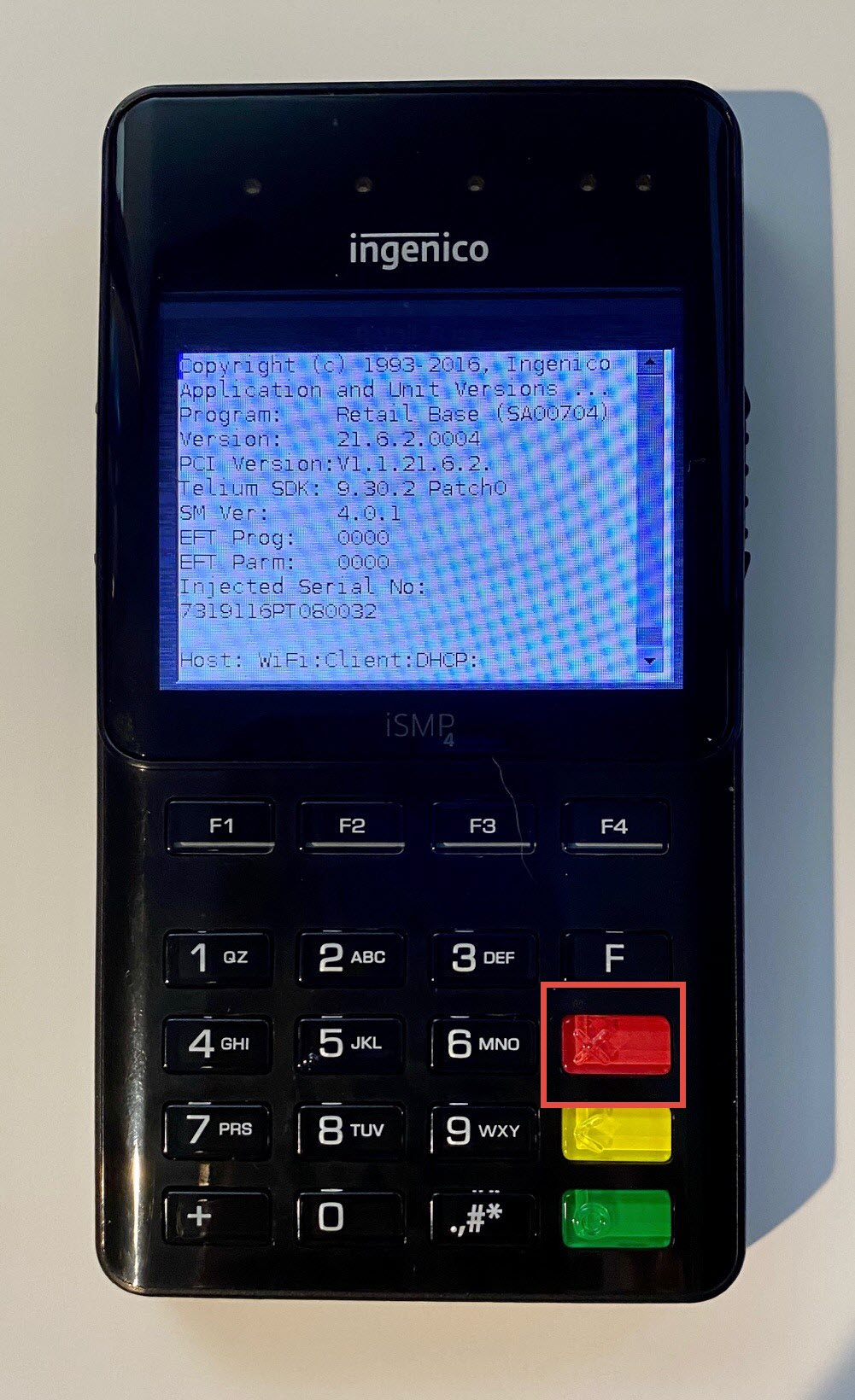
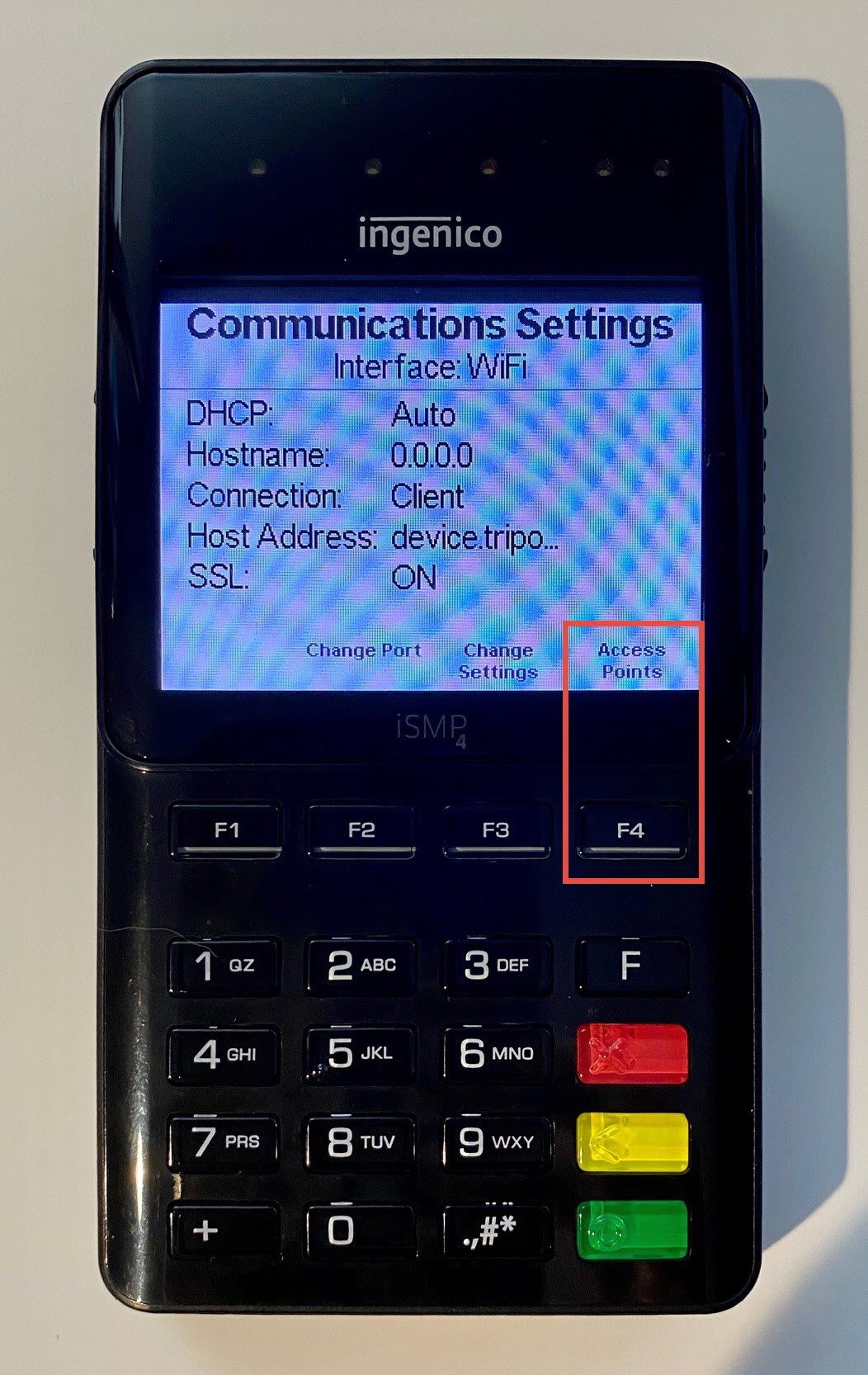
- Press the “F” button that is above the red button 4 times rapidly in sequence. You will see a screen that says Communications Settings.
- Press the F4 button to enter the section Access Points.
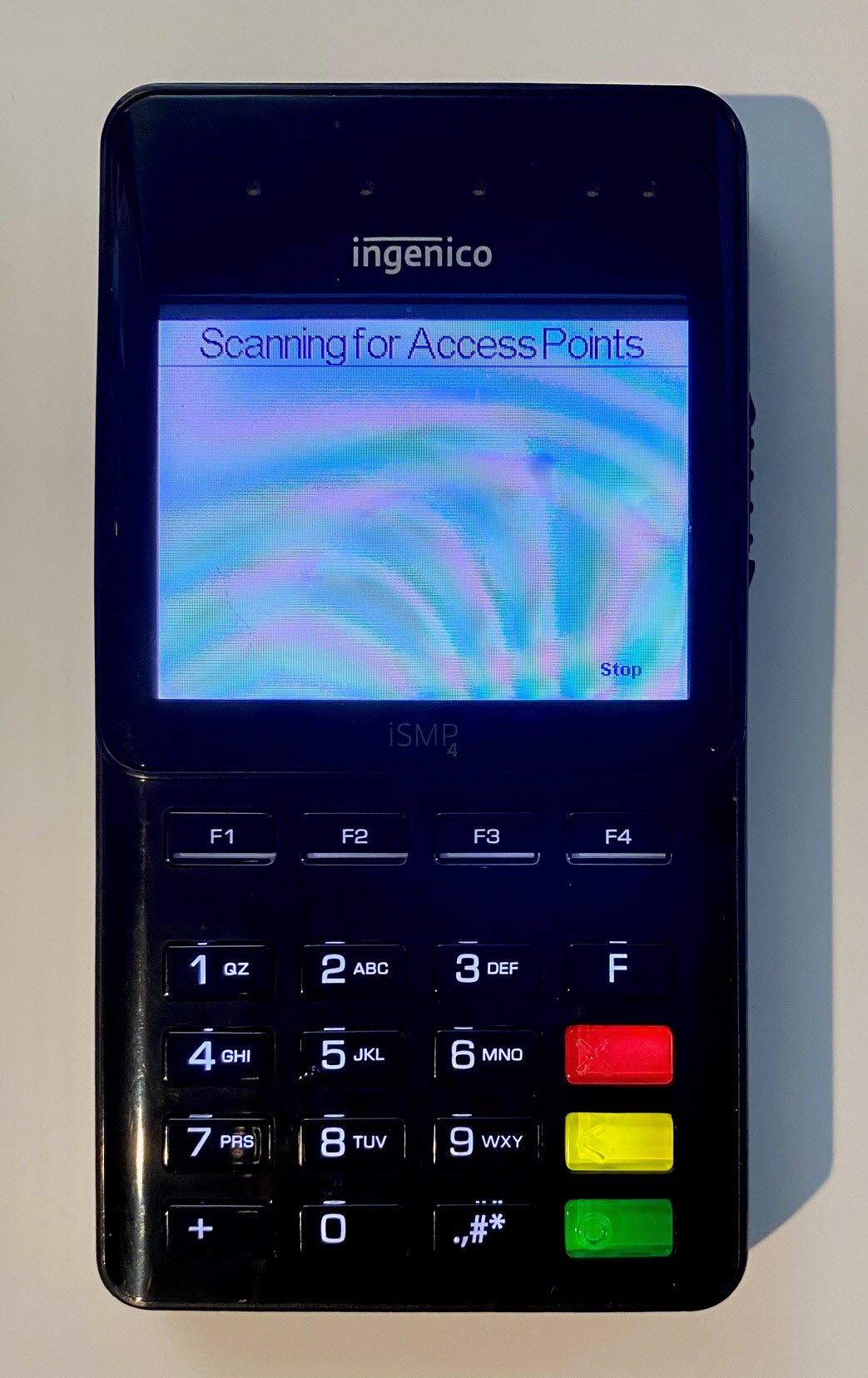
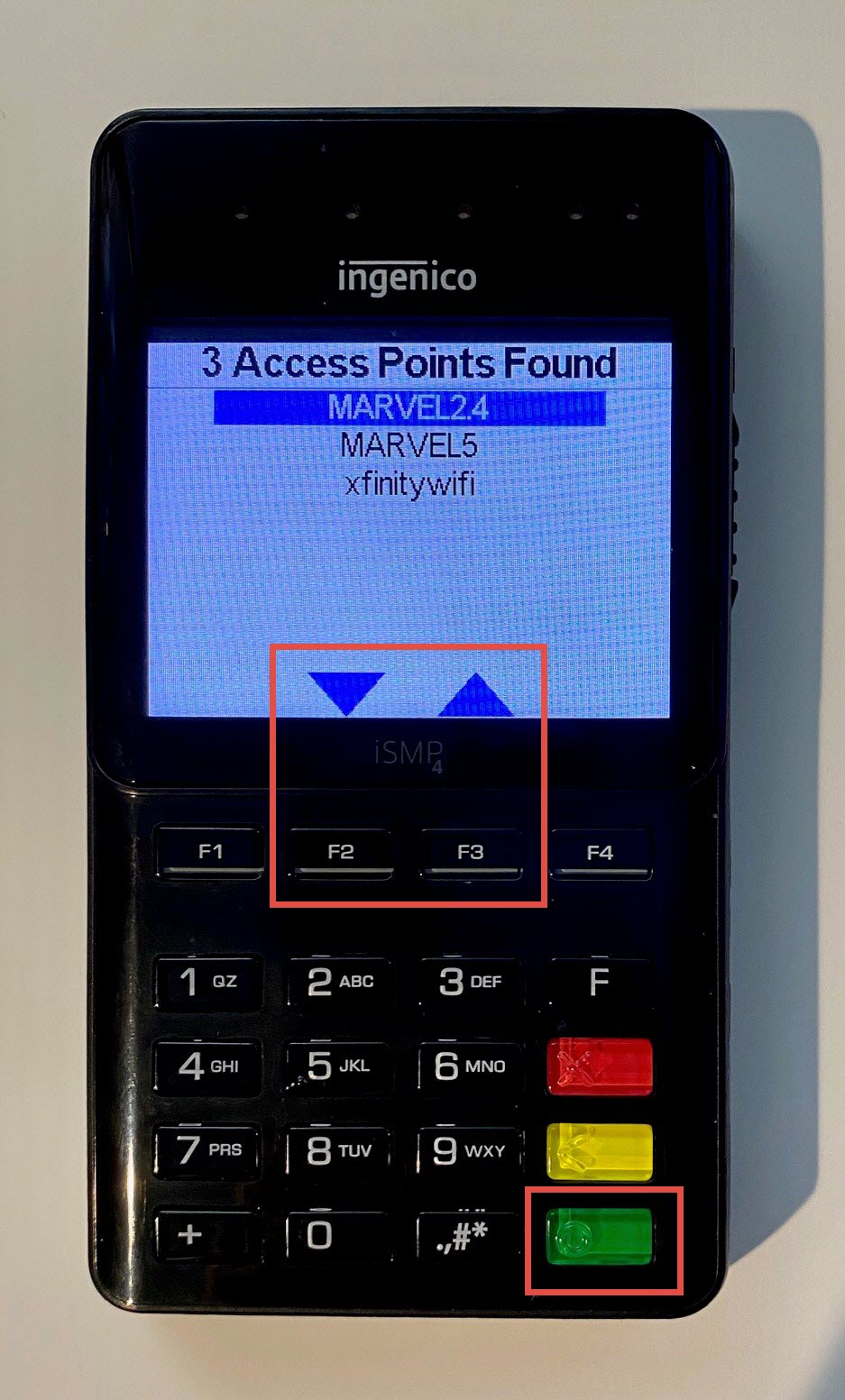
- Once the access points on your WiFi network are identified, select the one you wish to use with the F2 and F3 buttons to move up or down the list as needed. Press the green button on the keypad to make your selection.
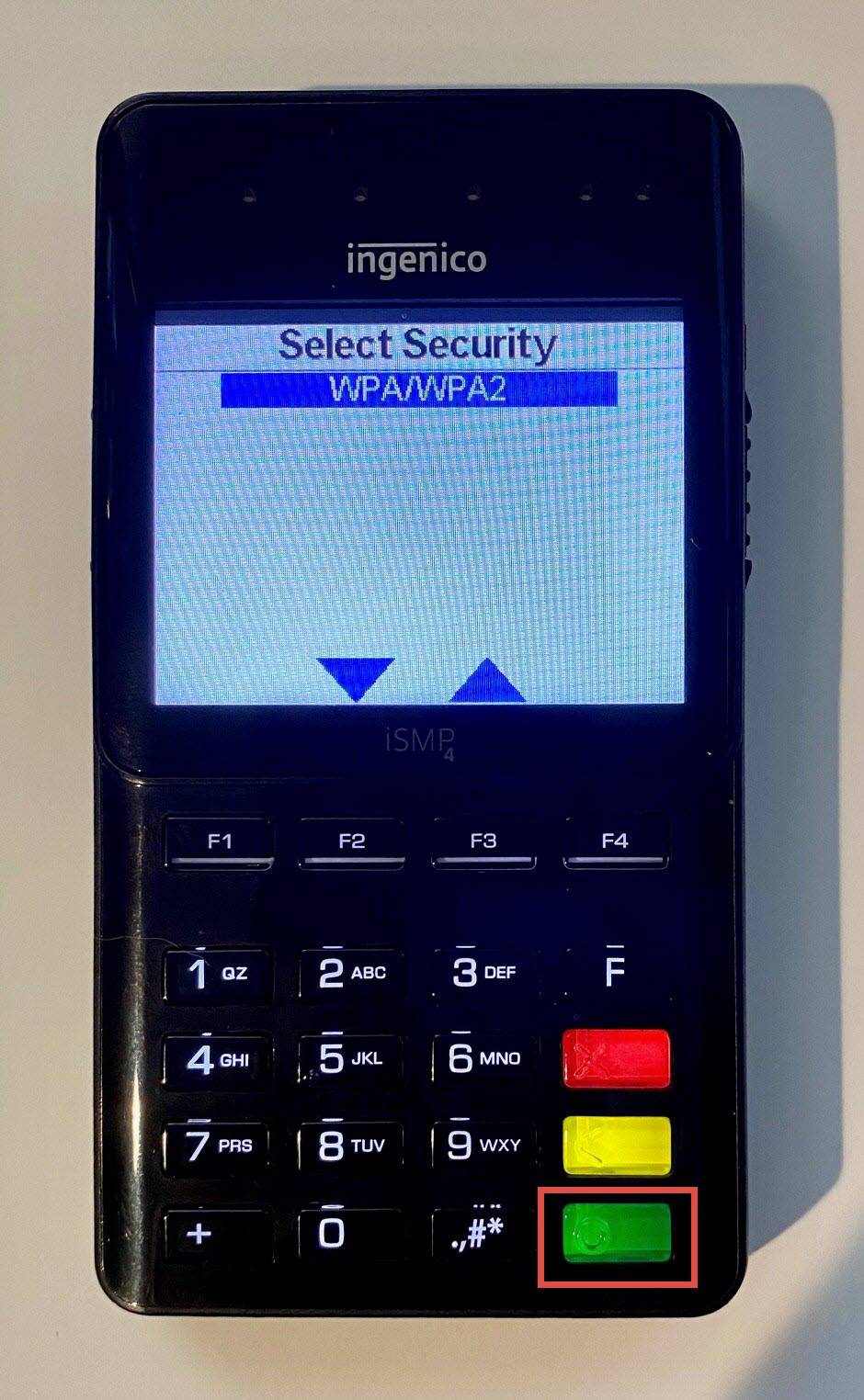
- On the next screen, confirm your security by hitting the green button again. This will advance you to the screen where you will need to enter your network password.
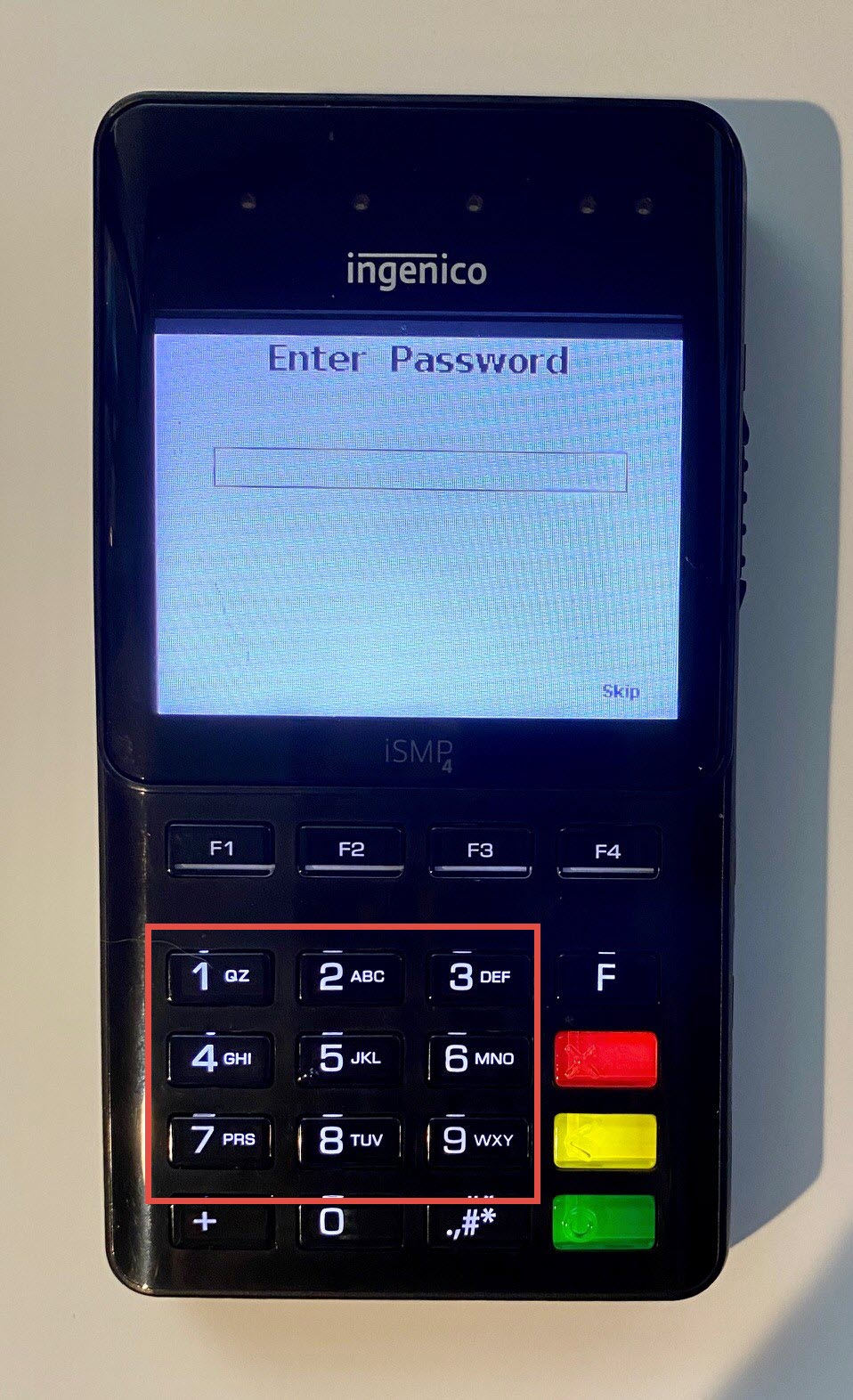
- You will use the number pad to select the letters and numbers.
- Be sure to enter the password using the T-9 Keyboard, tapping the key multiple times to select the correct number or letter from a single key. The F key will allow you to select special characters.
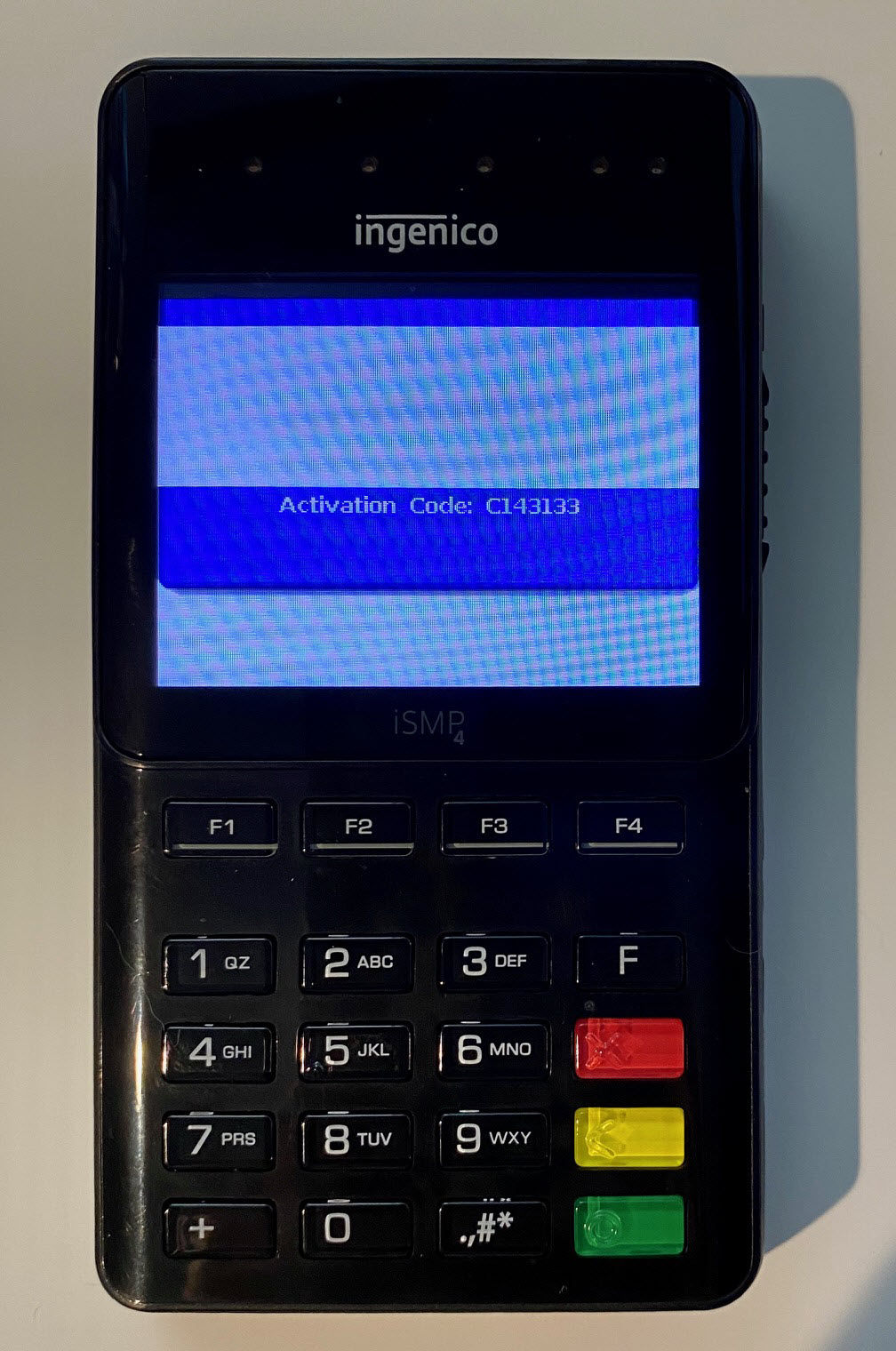
- You should receive an Activation Code that will need to be entered into PROSALE.
- If you receive a message "This Lane Closed", You have likely entered an incorrect password for your network and will need to remove your Access Point and re-add with the correct information.
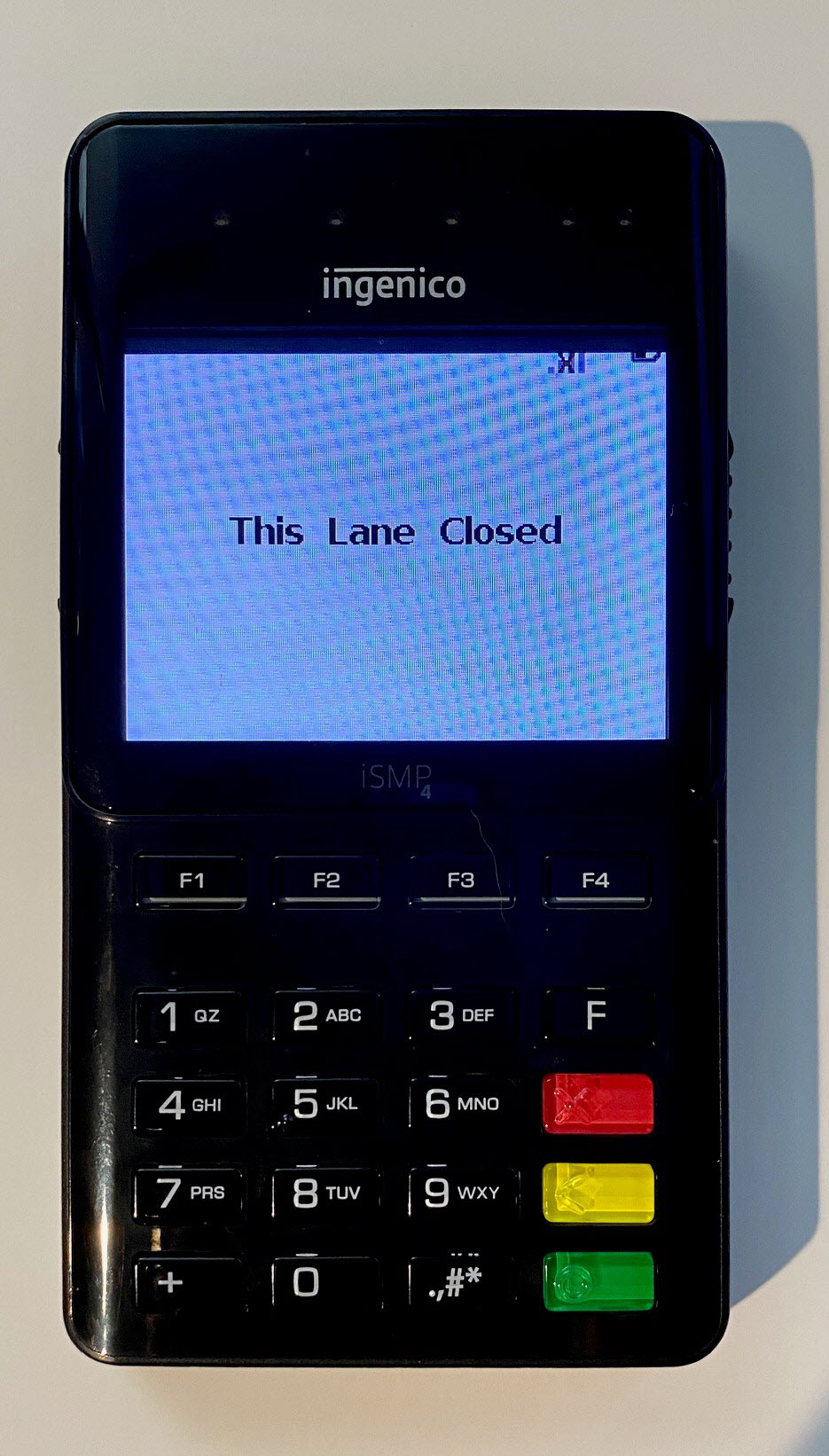
- Follow steps 1-3 above, select your current Access Point by hitting F4 and using the arrows to highlight. Hit the green button.
- Next hit F4 to Delete it.
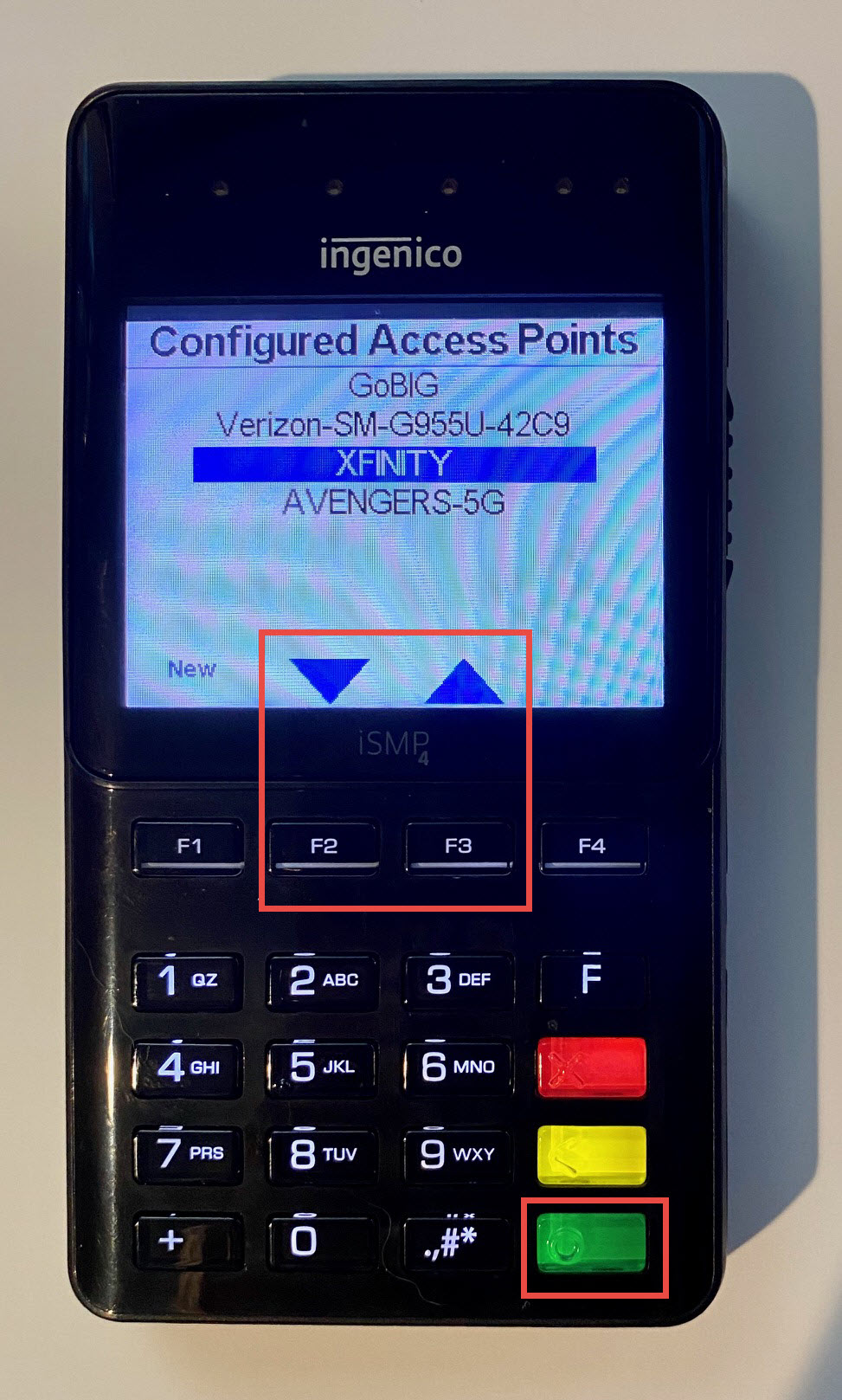
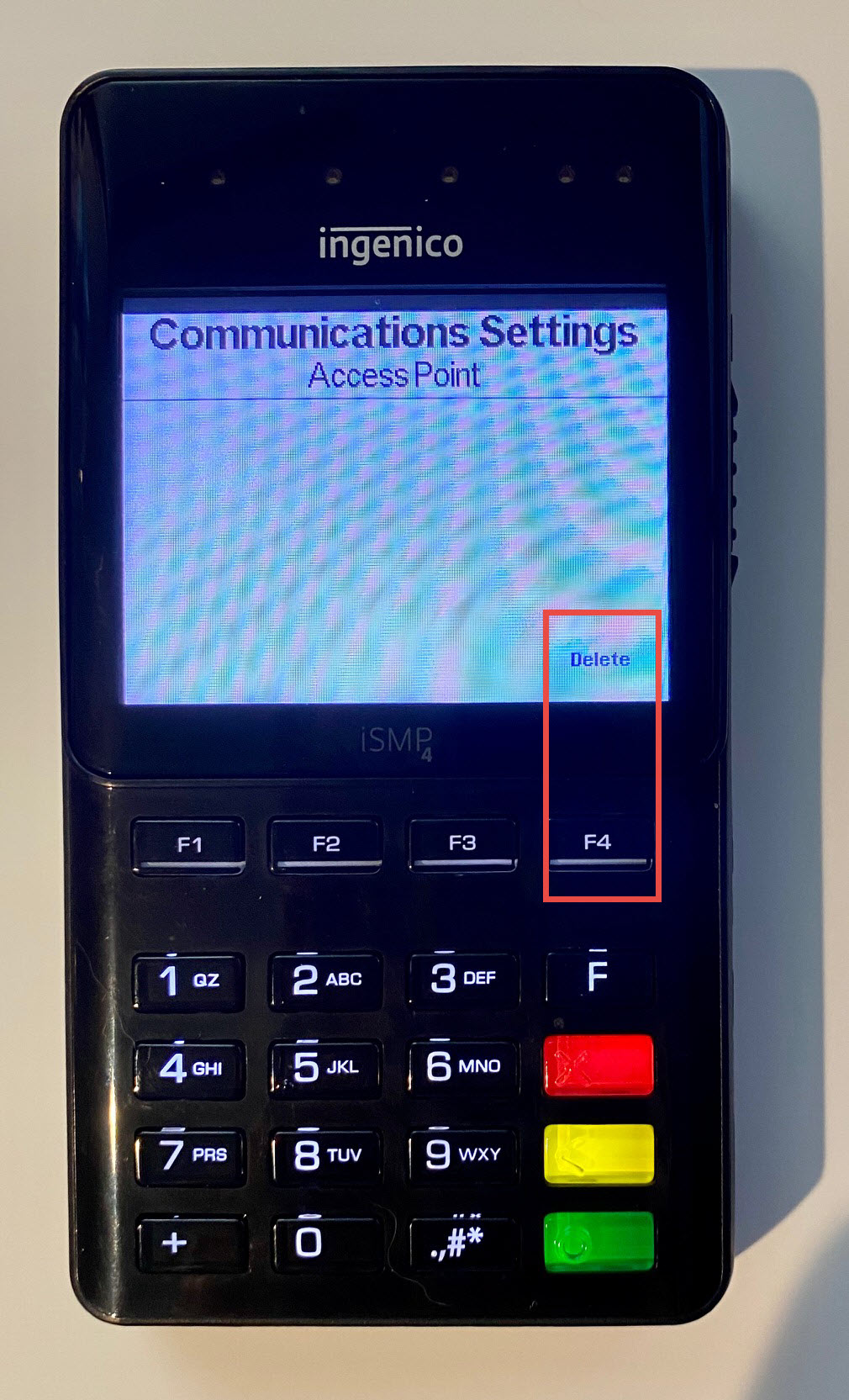
- Follow the remaining steps again to add your Access Point back and re-enter the corrected password.
- Complete the integration through PROSALE.
Comments
0 comments
Please sign in to leave a comment.