
Quick Add Options allow you to create buttons on the checkout screen to quickly add commonly sold goods that you always sell for the same price. This helps speed up checkout while decreasing the amount of time it takes to inventory and label all of the home contents.
You can customize your Quick Add options from the company settings. Once you create the quick add options under the company settings, you must select them under the sale profile of each sale to enable the quick add buttons on the point of sale screen.
First Step - Add quick add options to your company profile by following the next few steps.
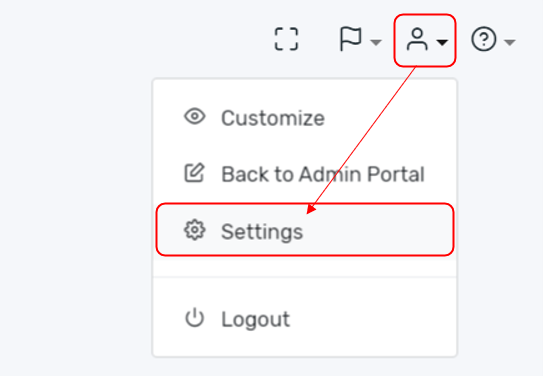
Select your profile and then settings.
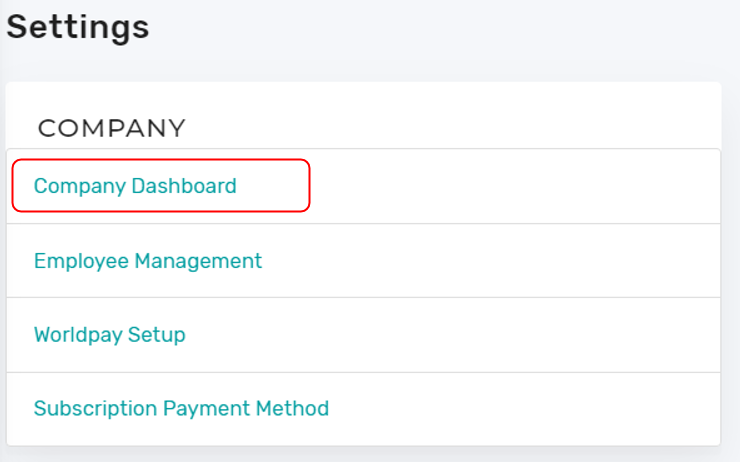
From the Settings menu choose Company Dashboard
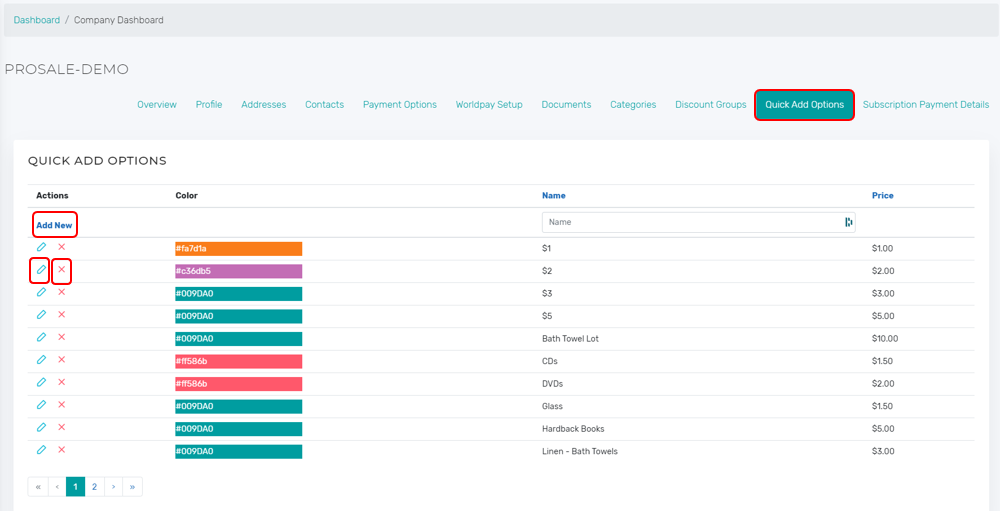
Select "Quick Add Options" from the Company Dashboard menu. You have the ability to create, delete, edit, and reorder your quick add from here. You can also color-code each button when editing the individual option.
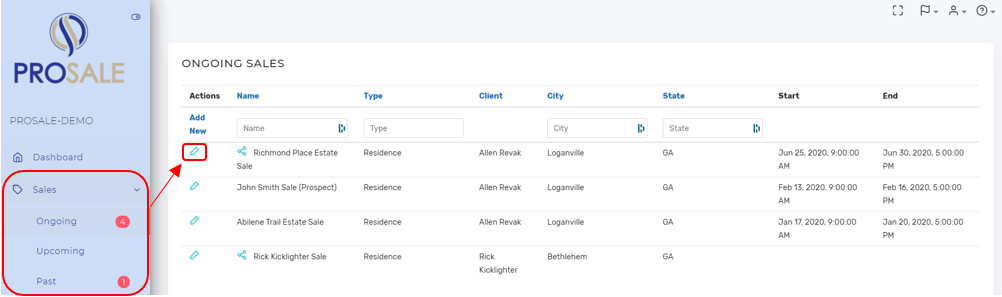
IMPORTANT: Second Step - Once you create the quick add options under company settings you must also enable the quick add options under each sale "Profile" from the sale dashboard.
Select the sale that you intend to enable quick-add buttons to the POS.
Select Profile from the Sale Dashboard. Then scroll down to "Quick Add Options". Here you can select all to add all of your options to this sale, you can add select options only, or you can remove quick add options from this sale.
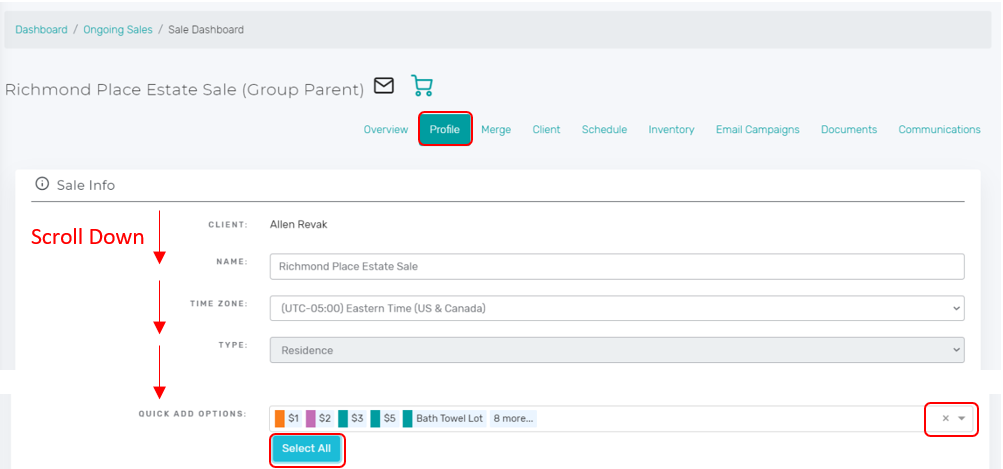
Once you have configured the quick add options for the individual sale, you should scroll to the bottom of the page and select Save.

Comments
0 comments
Please sign in to leave a comment.